- Home
- Page builders
- GoHighLevel
- Quiz funnel guide
GoHighLevel · Guide · 10 steps
How to build a quiz funnel in GoHighLevel
A quiz funnel turns “which treatment do I need?” into five easy taps and a clear next step. Here is the one I built for a med spa, with the real survey settings.
In this guide · 10 steps
- Try the treatment finder
- 1Map the questions to the results first
- 2Create the survey, one question per slide
- 3Make the first question a picture choice
- 4Use Bubble radio answers for the other questions
- 5Put the contact fields on the last slide
- 6Add the conditional logic
- 7Style it with a little custom CSS
- 8Embed it with the native Survey element
- 9Send the answers somewhere useful
- 10Test every path before you send traffic
- FAQ
Short answer
How do you build a quiz funnel in GoHighLevel?
Build the quiz as a HighLevel Survey: one question per slide, a picture answer first and contact details last. Add Jump To rules and one end screen or redirect per result, give every field a query key, then place the survey in a funnel page with the native Survey element.
In short
- Map every answer to a result before you open the builder.
- One question per slide, a picture answer first, contact details last.
- Jump To skips questions that don't apply. End screens or redirects send each person to their result.
- Give every field a query key, so workflows and your team can use the answers.
- Embed the quiz with the native Survey element, not an iframe.
A quiz funnel turns a hard question (“which treatment do I need?”) into a few easy taps and a clear next step. Visitors finish it because each step is small, and you get a lead that already says what they want.
This is how I built Treatment Finder v1 for Coastline Med Spa in HighLevel: six slides, four results, the real settings and screens from the build.
What you need
- A HighLevel sub-account with Sites → Surveys
- Every question and answer written out, with the result each answer leads to
- Answer images for picture tiles (I used 800 × 600 PNGs in the brand colors)
- The funnel step the quiz will sit on
Try the treatment finder
This is Treatment Finder v1 from the Coastline Med Spa funnel: five one-tap questions, then the plan. Nothing you pick here is sent.
About 60 seconds. Private.Free consult + $100 credit
Conditional logic Treatment Finder v1
- Jump to If
finder_goalis “Body: stubborn fat or loose skin”, go to the body-area slide - End screen Body goal → Contour and Tighten
- End screen Spots or texture with no downtime, or dull skin → Clear and Glow
- End screen Spots, redness, texture or scars → Even and Renew
- End screen Lines or lost volume → Smooth and Restore
Answers saved to the contact
- finder_goal
- ·
- finder_area
- ·
- finder_area_body
- ·
- finder_downtime
- ·
- finder_history
- ·
- finder_timing
- ·
1Map the questions to the results first
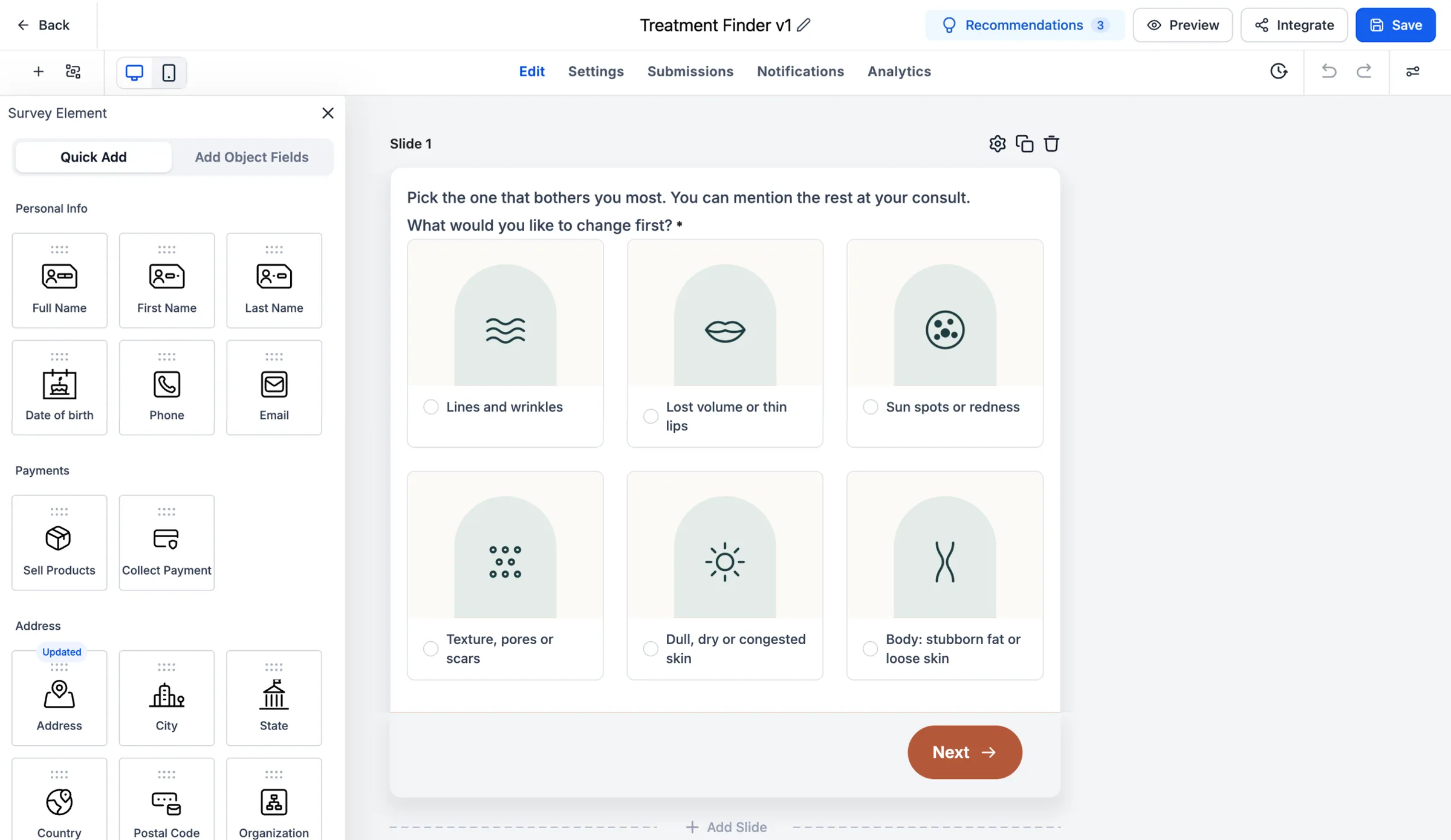
Write every question, every answer and the result it points to before you build anything. The finder has five one-tap questions and a contact slide, and four results:
- Goal: six picture tiles, from lines and wrinkles to body contouring. This answer decides most of the result.
- Area: face areas, or body areas for the body goal only.
- Downtime: none, a day or two, up to a week. It splits skin goals between facials and laser.
- History and timing: they don't change the result, but the team needs them before the consult.
- Contact: first name, mobile, email, last.
From my build: If a question doesn't change the result or the follow-up, cut it. Every extra slide costs finishes.
2Create the survey, one question per slide
Go to Sites → Surveys → New and name it (mine is “Treatment Finder v1”). Add a slide per question with + Add Slide and put one field on each slide.
Give every field its own query key: finder_goal, finder_area, finder_area_body, finder_downtime, finder_history, finder_timing. The keys become contact fields, so workflows can use them and the team can read them in the contact record.
3Make the first question a picture choice
Use a Picture Choice field on the first slide and upload one image per answer to Media Storage. A tap on a picture is the easiest first step there is, and once people have tapped one, most of them keep going.
I drew six arch-shaped tiles with line icons in the brand colors, so the quiz looks like part of the page, not a stock form. Keep the labels short enough for two lines on a phone.
4Use Bubble radio answers for the other questions
Slides 2 to 5 are Radio fields with the Bubble style, which turns each answer into a rounded card that's easy to hit with a thumb. In the survey settings, turn on Auto Navigation so a tap moves straight to the next slide, keep the Back button, and turn on Scroll to Top so each new question starts at the top on a phone.
From my build: Write a one-line hint under each question that lowers the stakes: “This helps us plan, not judge.” It answers the worry behind the question.
5Put the contact fields on the last slide
The last slide asks for first name, mobile and email, with two optional SMS consent checkboxes (appointment texts and marketing texts), unchecked, with the opt-out wording. Turn on Sticky Contact so the details are saved even if someone stops on this slide.
Label the button with what they get, not what they do: “See my treatment plan”, not “Submit”.
6Add the conditional logic
Open Conditional Logic. First the Jump To rules: if finder_goal is “Body: stubborn fat or loose skin”, jump to the body-area slide; after the face-area slide, jump past it to downtime.
Then one end rule per result. They run top to bottom and the first match wins, so the narrowest rule goes first:
- Body goal → Contour and Tighten
- Sun spots or texture and no downtime, or dull skin → Clear and Glow (facials)
- Sun spots, redness, texture or scars → Even and Renew (laser)
- Lines or lost volume → Smooth and Restore (injectables)
From my build: I show each result as a custom message end screen. When every result has its own page with prices and a calendar, use Redirect to URL instead and keep the UTM parameters on.
7Style it with a little custom CSS
Survey → Styles sets colors, fonts, radius and the button. The rest goes in Custom CSS: the question font, the tile borders, the selected state. HighLevel's class names change between versions, so preview the survey, inspect one answer and use the selector you see. These are the rules from the finder:
/* question in the headline font, hint under it */
.form-builder--item .field-label { font-family: "Newsreader", Georgia, serif !important; font-size: 32px !important; line-height: 38px !important; color: #1E3B40 !important; }

/* picture tiles: soft border, a clear selected state */
.picture-choice-card { border: 1.5px solid #E7DCCD !important; border-radius: 16px !important; }
.picture-choice-card:has(input:checked) { border-color: #1E3B40 !important; box-shadow: 0 0 0 3px #E3ECE8 !important; }

/* bubble answers as full-width tiles */
.bubble-label { min-height: 58px; padding: 14px 20px !important; border-radius: 16px !important; }8Embed it with the native Survey element
On the funnel step, add a Survey element (not a Custom HTML iframe) and pick the survey. It loads with the page and takes the column's width.
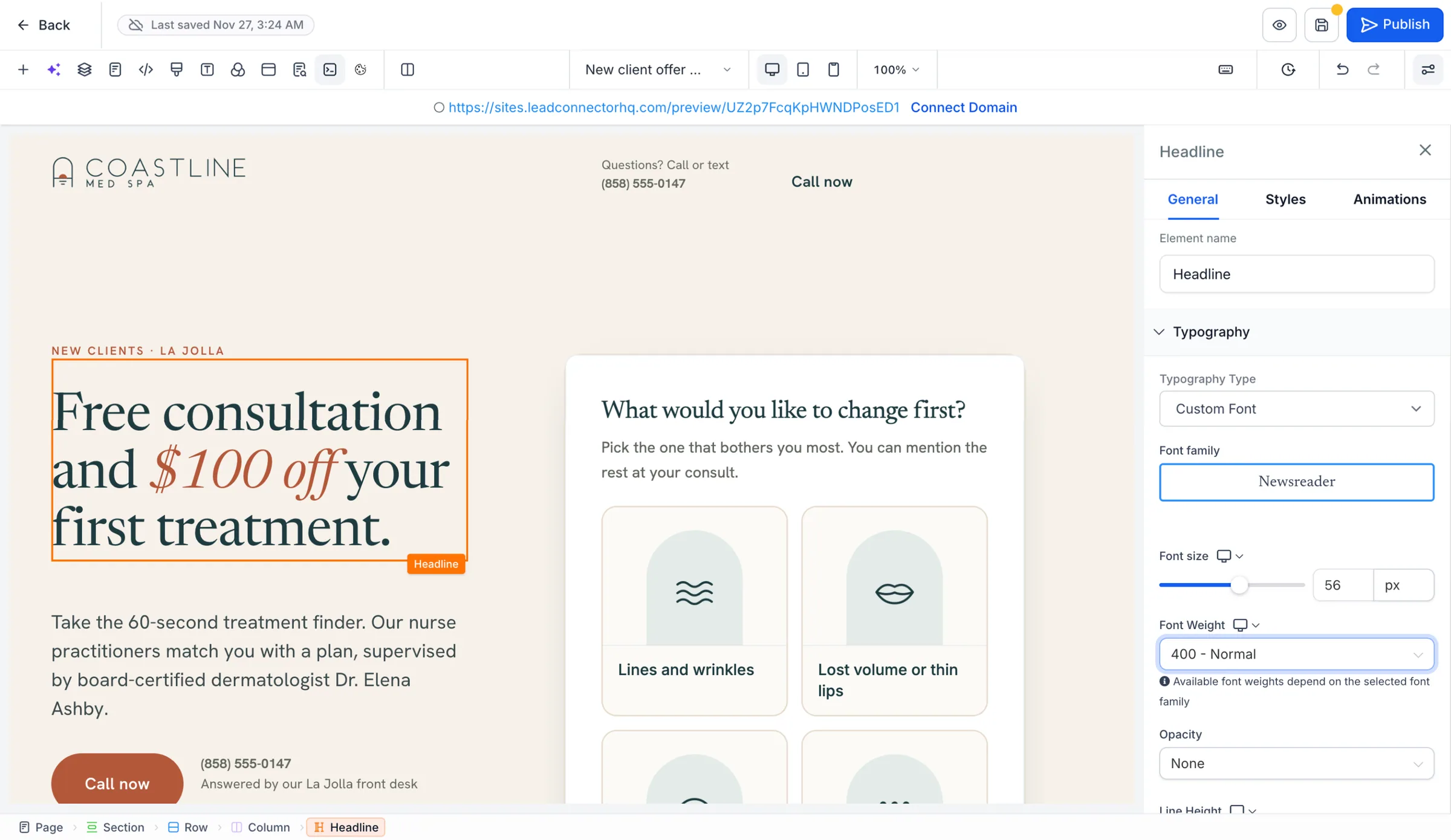
On Coastline the finder is the hero's right column. On a phone the headline, the Call now button and all six tiles fit in the first screen, so the first tap is right there.
9Send the answers somewhere useful
Every answer lands on the contact record under its query key. Add a workflow with the trigger Survey submitted (filtered to your survey) to tag the lead, create an opportunity in your pipeline and text the plan link while the lead is still on their phone. Put a value on each opportunity by result, so the pipeline shows money, not just names.
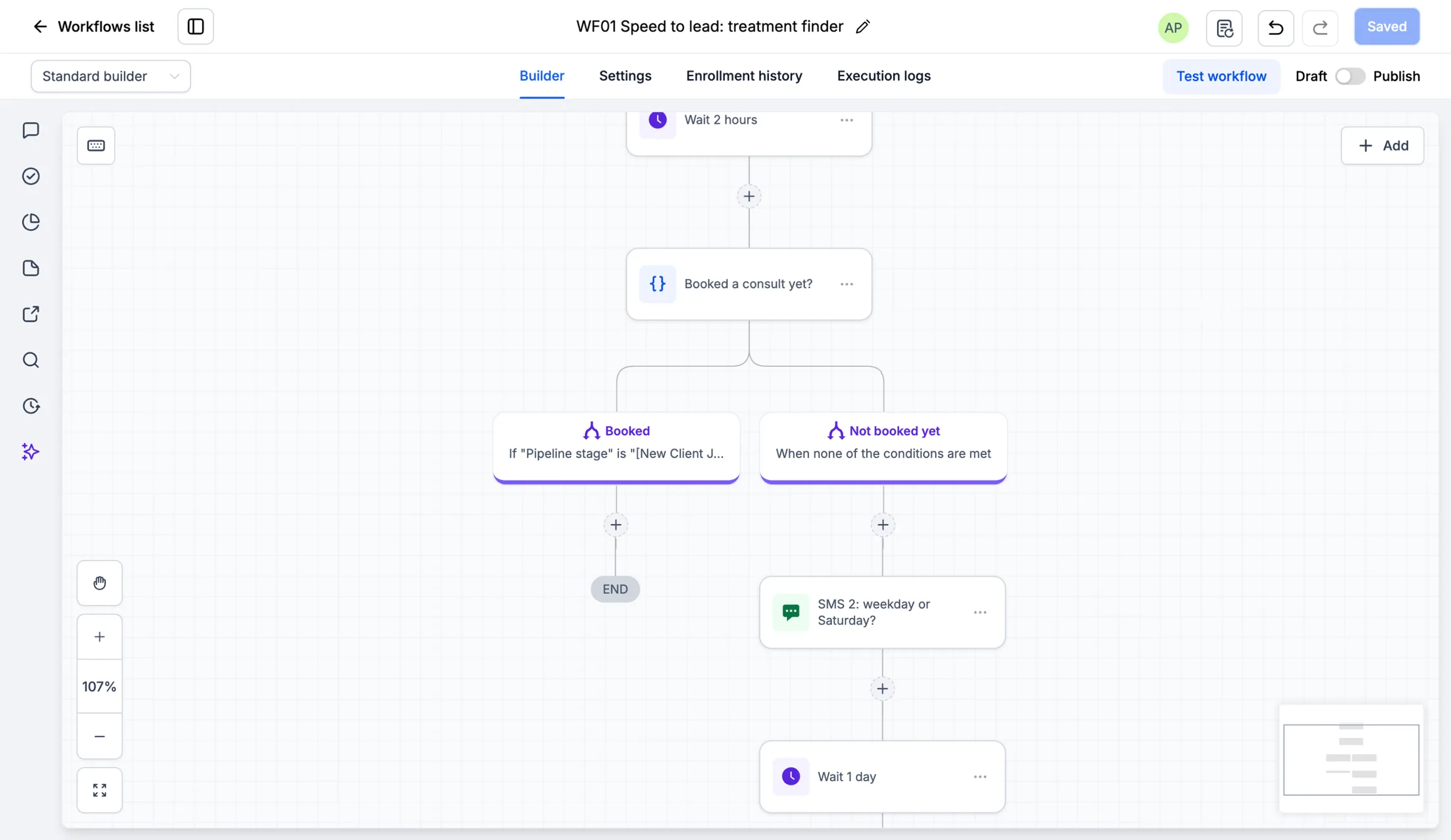
From my build: Put every later nudge behind one If/else: is the pipeline stage Consult booked yet? If it is, the workflow ends. Nobody gets a reminder to book after they've booked.
10Test every path before you send traffic
Open the survey's preview in a private window and take each path once. Check that the right end screen shows, the contact record has every answer and the pipeline card lands in the right stage. Then do it again on a phone: the first question should be fully visible without scrolling.
That's the whole build. The finder does one job: it turns a vague “I'd like to look less tired” into a specific plan, a contact and a pipeline card the team can act on the same day.
FAQ
Can GoHighLevel surveys use conditional logic?
Yes. Surveys support Jump To rules that skip slides based on an answer, and end rules that show a custom message or redirect to a URL. The rules run top to bottom and the first match wins, so put the narrowest rule first.
Should I use a form or a survey for a quiz funnel in HighLevel?
A survey. A form shows every field at once. A survey shows one question per slide with progress, a Back button and auto-advance, which is what makes a quiz feel quick.
Can each result go to its own page?
Yes. Use Redirect to URL as the end rule for each result, and keep the query parameters so ad tracking survives the redirect. Use a custom message instead when a short result on the same screen is enough.
Does the quiz logic come along in a snapshot?
Check it after you load the snapshot. Look at the survey's conditional logic and re-add any rule that didn't come across before you send traffic.
How many questions should a quiz funnel have?
As few as you need to pick the result. Coastline's finder has five one-tap questions and a contact slide and takes about a minute. If a question doesn't change the result or the follow-up, cut it.

Conversion designer. I design and build whole websites, funnels and landing pages in GoHighLevel and other page builders, write the copy and set up the tracking and A/B tests. CXL certified.