Leadpages · Guide · 3 steps
How to add a pop-up to a Leadpages landing page
A second offer for people who aren't ready to book: a pop-up with its own form, opened from a button, full screen on phones.
In this guide · 3 steps
Short answer
How do you add a pop-up in Leadpages?
Create the pop-up as its own asset with a form, link it to a button or text on the page, and send the form to its own thank-you page. Keep it for a second offer, such as a guide, so it doesn't compete with the main form.
In short
- A second offer, not the main one.
- Opened from a button.
- Its own short form.
- Its own thank-you page.
- Full screen on phones.
Some homeowners are a year out. A pop-up with a cost guide gives them a reason to leave an email without pushing the design visit aside.
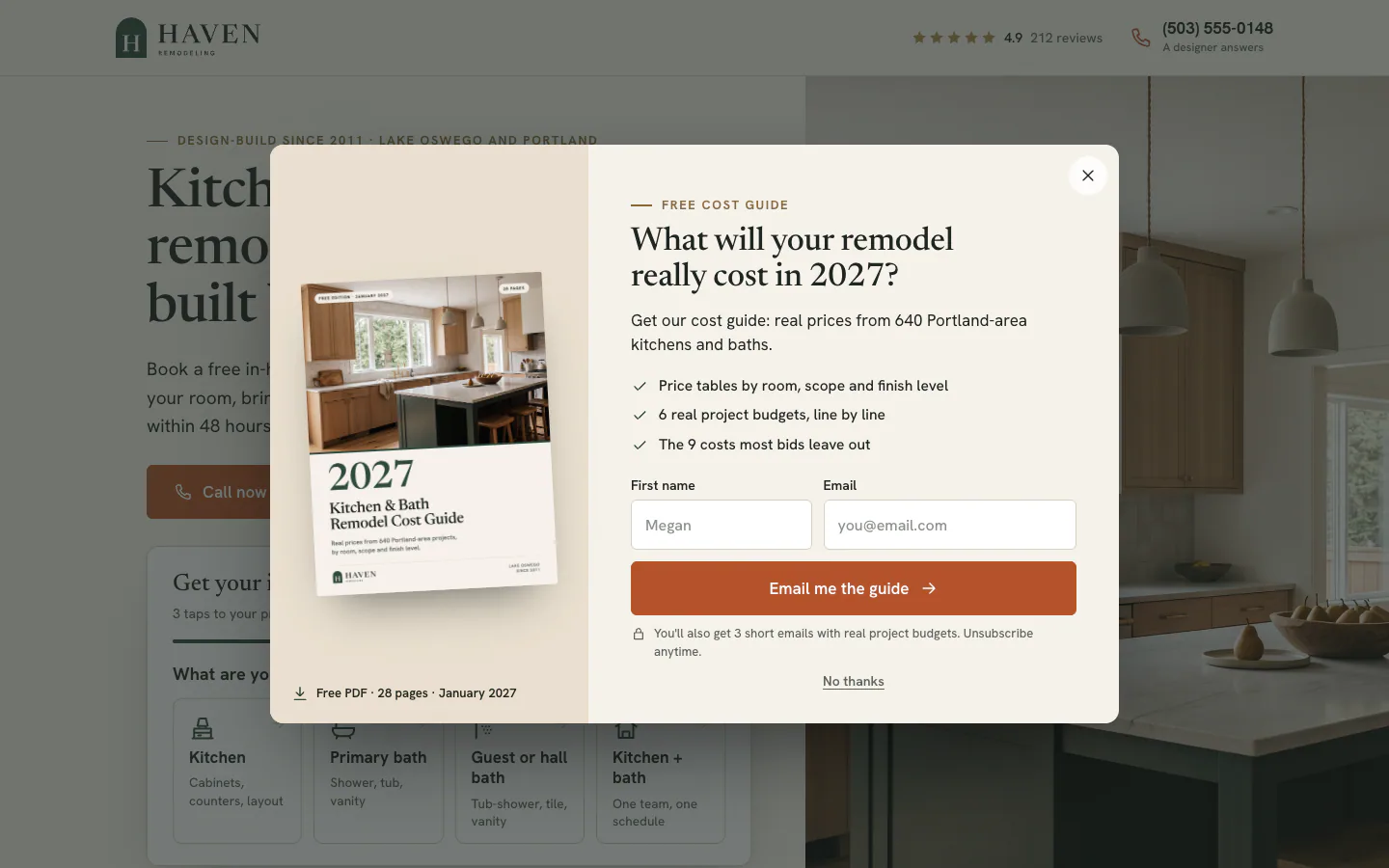
On desktop
The cost guide pop-up over the consultation page, opened from the guide button.
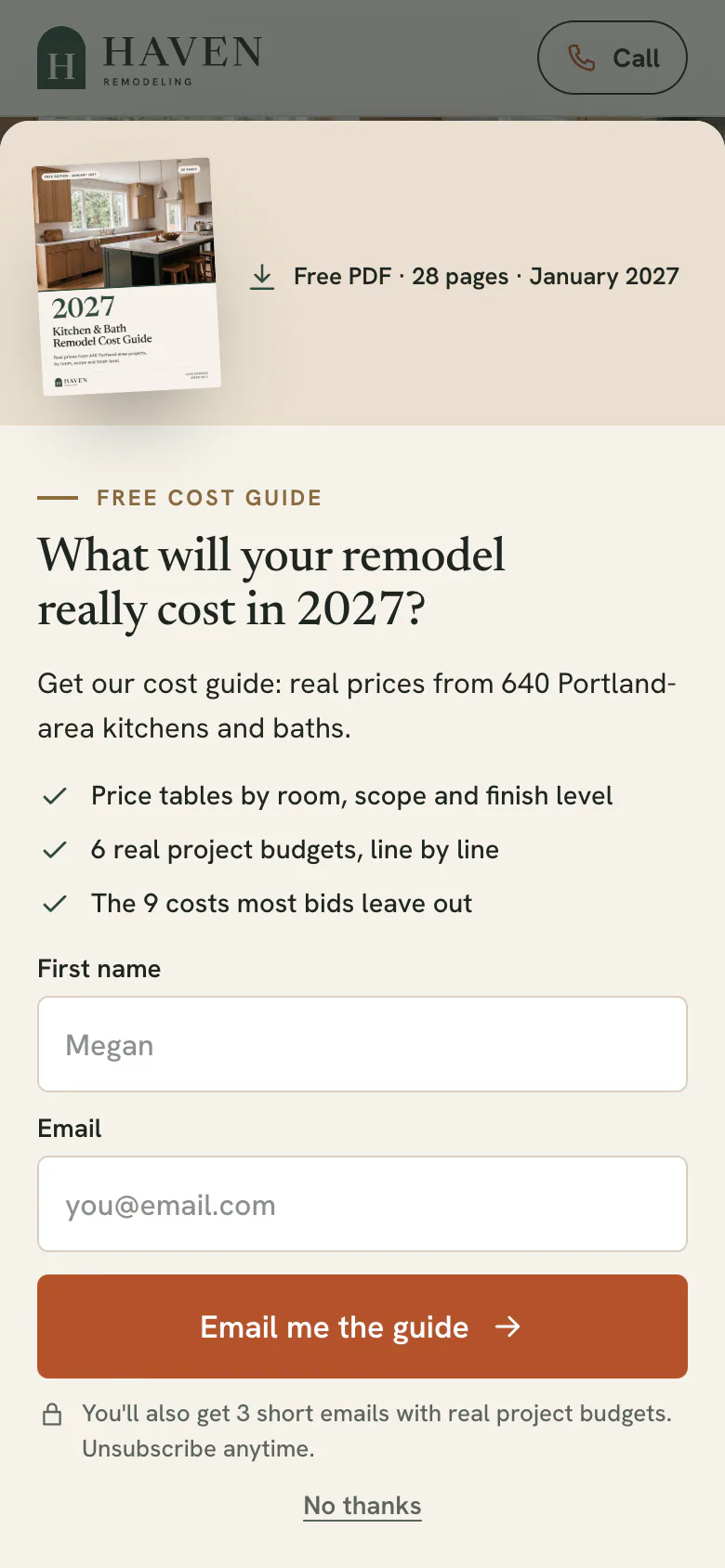
On a phone
Full screen, with the form in reach of a thumb.
How to build it in Leadpages
1Create the pop-up
Add a pop-up asset, design it with the same Brand Kit, and add a short form.
2Link it from the page
Link a button or a text link on the landing page to open the pop-up.
3Send it to a thank-you page
Point the form to its own thank-you page, so guide requests and visit requests are counted apart.
Common mistakes
- A pop-up for the main offer.
- A pop-up that opens on page load.
- The same thank-you page for every form.
FAQ
Can a Leadpages pop-up open on exit intent?
Pop-ups open from links and buttons; for timed or exit triggers, use Leadpages' pop-up settings where your plan supports them.
Should the pop-up ask for a phone number?
No. First name and email are enough for a guide.

Conversion designer. I design and build whole websites, funnels and landing pages in Leadpages and other page builders, write the copy and set up the tracking and A/B tests. CXL certified.