Product page · Article 6 of 10
Variants, sizes and personalization: how to design the selectors
Use color swatches for colors and buttons for sizes, not dropdowns. Give every color its own photos, keep the full page content when a variant changes, preselect what the shopper filtered for, mark unavailable options once a choice is made, keep the size when the color changes, and show a live preview for personalized products.
In this article · 8 tips
- Why variant selection makes or breaks the sale
- 1Use color swatches for colors and buttons for sizes, not dropdowns
- 2Give every color its own photos from the same angles
- 3Keep the full content when a variant changes
- 4Preselect the variant the shopper filtered for
- 5Show which options are unavailable once one is chosen
- 6Keep the chosen size when the shopper switches color
- 7Hide a selector when only one option is left
- 8Put personalization in the buy box and show a live preview
- FAQ
In short
- Dropdowns hide the options. Swatches and buttons show them all at once and make choosing faster.
- Changing a color should change the photos, and nothing else should disappear.
- Shoppers who filtered for size M on the collection page expect M to be selected on the product page.
- For personalized products, a live preview turns a leap of faith into a decision.
Why variant selection makes or breaks the sale
Choosing the right color, size or version is the last step before Add to cart, and it's where small design problems cost the most. A shopper who can't see the options, picks a size that isn't available, or loses their choice when switching color often gives up right before buying.
1Use color swatches for colors and buttons for sizes, not dropdowns
Dropdowns hide the options. Swatches and buttons show all of them at once.
✕ Avoid
Canvas sneaker
$85
✓ Do this
Canvas sneaker
$85
Color: Tan
Size: 9
Size guide
Add to cartWhy it matters
A dropdown hides every option until it's opened, and says "Navy" when the shopper wants to see navy. Swatches show the actual colors at a glance; buttons show every size and which ones are available. Both take one tap instead of two.
How to do it
- Show colors as swatches (a photo crop of the fabric or finish, not just a flat color dot) with the color name visible on selection.
- Show sizes and other short options as buttons in a row, large enough to tap.
- Use a dropdown only for long lists (dozens of options) where buttons won't fit.
- Label the selected option clearly: "Color: Navy", "Size: M".
- Add a size guide link right next to the size buttons, not further down the page.
On ShopifyTheme setting
Most current themes have a variant picker style setting: choose buttons ("pills") instead of dropdown. Shopify themes can show color swatches from your product options; set swatch colors or images on the option values.
Quick test: Are colors shown as swatches and sizes as buttons, with the selection labeled?
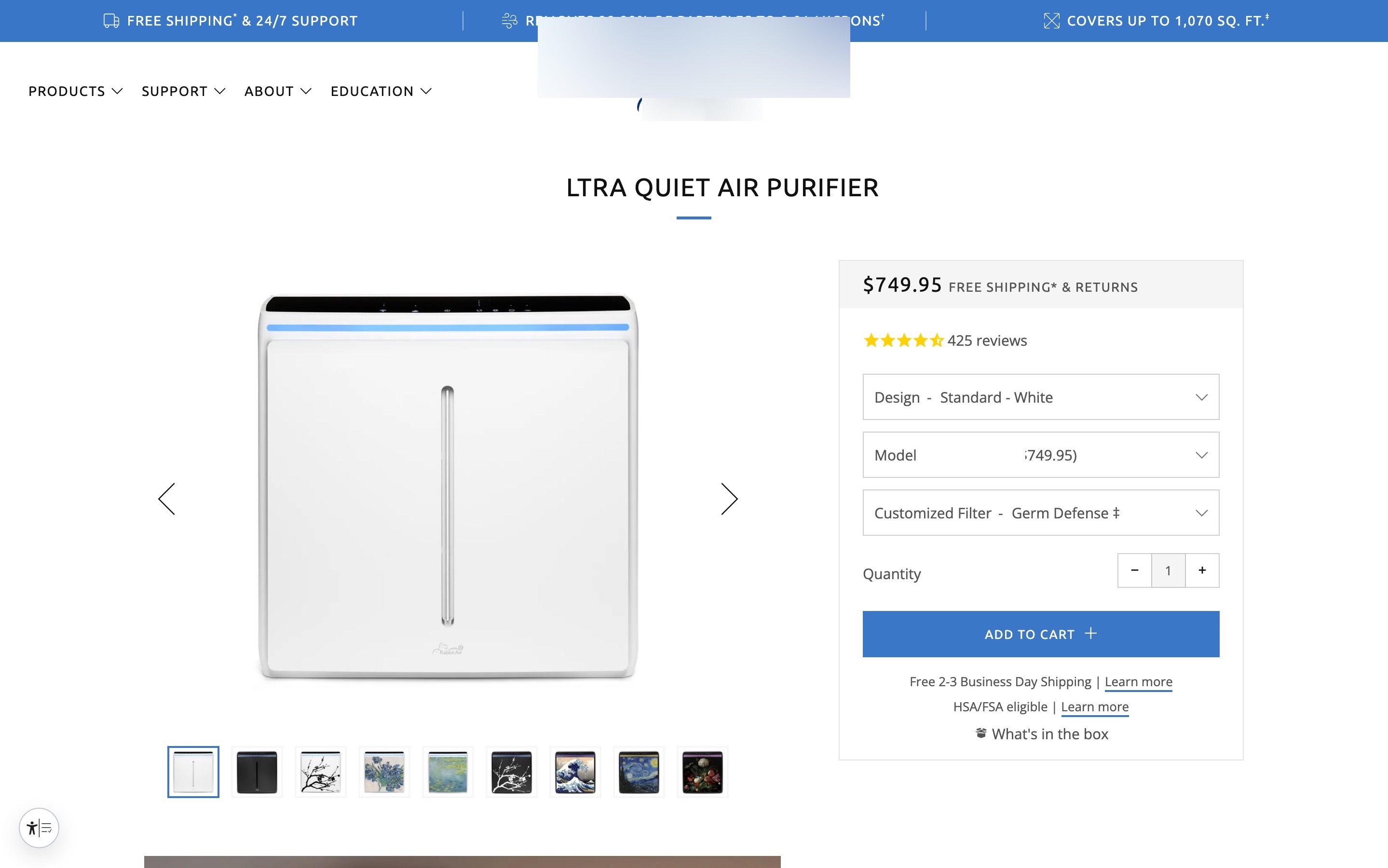
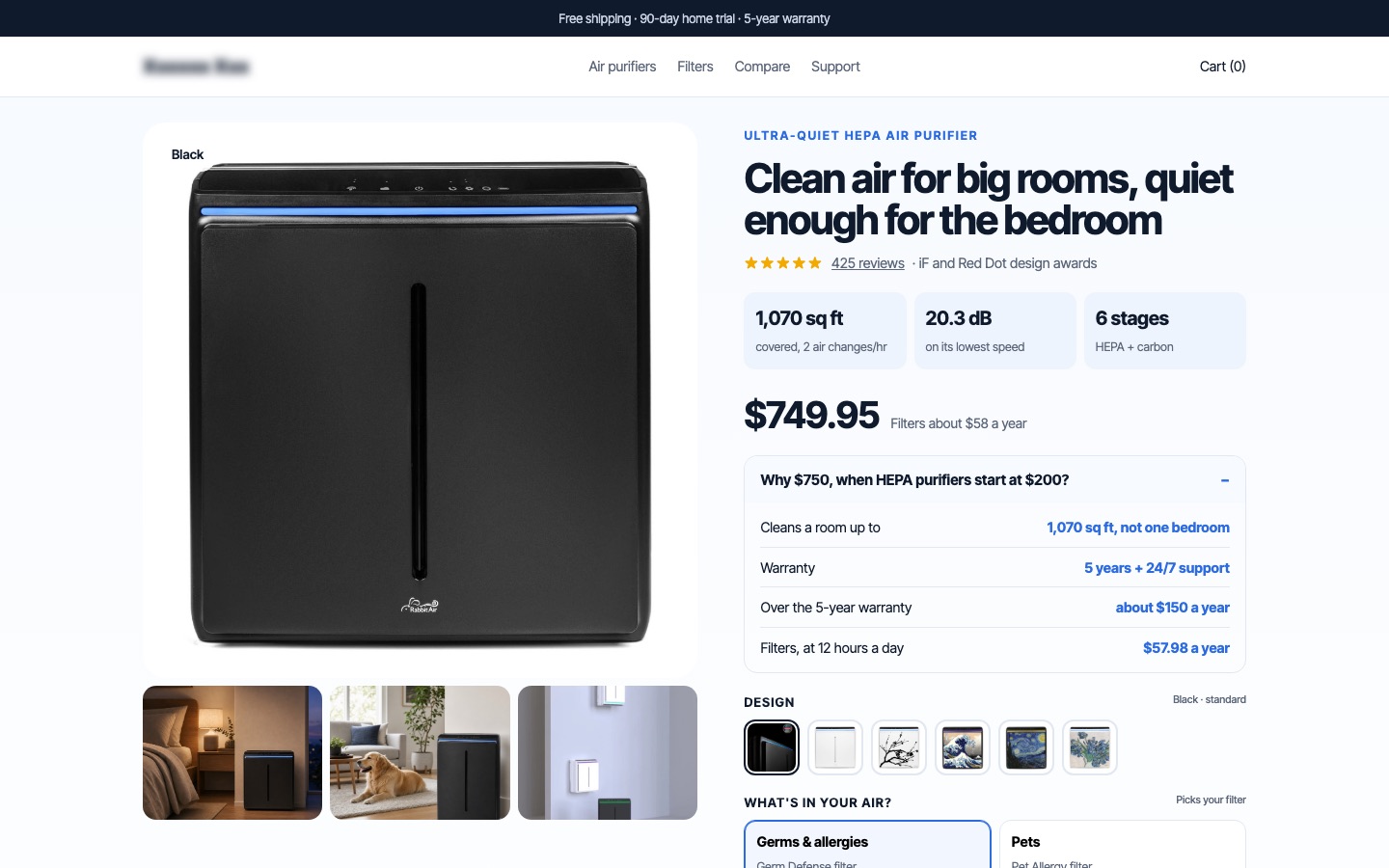
From my work · +8.2% revenue per visitor
A $750 air purifier hid its art editions in a dropdown. The redesign showed the editions as image swatches, so shoppers could see each design without opening a menu.
See the air purifier case study2Give every color its own photos from the same angles
Changing the color should change the photo. Every color needs its own photos.
✕ Avoid
Color: Tan
Photo still shows black
✓ Do this
Color: Tan
Why it matters
If the gallery only shows the black version, shoppers choosing tan have to imagine it. Worse, if tan only has one dim photo, it looks like the lesser option and doesn't sell. Every color is a product in the shopper's eyes.
How to do it
- Shoot every color from the same main angles, so switching colors compares like with like.
- Change the main photo (and ideally the whole gallery) when a color is selected.
- Add the all-colors image (see one image with every color) for comparison.
On ShopifyBuilt in
Assign each variant an image so the main photo changes on selection. To show only the selected color's photos, use a theme setting that hides other variants' media, or an app.
Quick test: Does every color have its own photos, and does the gallery change when a color is picked?
3Keep the full content when a variant changes
When a shopper switches variant, nothing else on the page should disappear.
✕ Avoid
Merino sweater · Green
$120
No reviews yet
✓ Do this
Merino sweater · Green
★★★★★ 4.8 (164)
$120
Description+
Fit and sizing+
Reviews (164)+
Why it matters
On some stores, choosing a different color or size reloads a variant page with a shorter description, no reviews or missing specs. Shoppers think they're looking at a different, lesser product, or they simply can't find what they read a moment ago.
How to do it
- Keep the description, specs, reviews and all sections the same across variants; change only what differs (price, photos, stock, a spec line).
- If variants are separate products (common for colors), make sure every one has the full content and the same reviews.
- Keep the page in place when a variant changes: no scroll jump, no full reload.
On ShopifyBuilt in
Shopify variants share the product's content automatically. If you sell colors as separate products, Shopify's Combined Listings app (Plus) or a swatch app links them; make sure reviews are shared across them.
Quick test: Does all the product content stay when a shopper switches variant?
4Preselect the variant the shopper filtered for
Shoppers who filtered for blue and size 10 expect to land on blue, size 10.
✕ Avoid
From: Sneakers · Blue · Size 10
Color: Black
Size
✓ Do this
From: Sneakers · Blue · Size 10
Color: Blue
Size: 10
Why it matters
A shopper filters a collection for "blue" and "size 10", opens a shoe, and the product page shows black with no size selected. They have to choose again what they already chose, and some don't notice and add the wrong one.
How to do it
- Carry color and size filters into the product link, so the product page opens with them selected.
- Show the matching color photo on the collection card too (see color filter photos).
- Don't preselect a size the shopper didn't choose; showing "Select a size" is better than a wrong guess.
On ShopifyCode
Shopify product URLs can open a specific variant with ?variant=ID. Linking filtered results to the matching variant needs a small theme change or a filter app that supports it.
Quick test: Does the product page open with the color and size the shopper filtered for?
5Show which options are unavailable once one is chosen
Once a color is chosen, show which sizes are gone, so nobody taps their way to disappointment.
✕ Avoid
Linen shirt · White
Sorry, M is sold out in this color
✓ Do this
Linen shirt · White
M sold out in white · Get notified
Add to cartWhy it matters
If every size looks available until the shopper taps it, they find out one by one that their size is sold out in this color. Showing availability as soon as a color is chosen saves the frustration and points them to what they can buy.
How to do it
- Once a color is selected, mark unavailable sizes clearly (crossed out or faded, still readable), and vice versa.
- Let shoppers still tap an unavailable option to get a back-in-stock alert.
- Don't hide unavailable sizes entirely: shoppers then wonder whether you ever make their size.
On ShopifyBuilt in
Shopify themes with button-style pickers usually cross out unavailable combinations. Check how yours shows them, and pair it with a back-in-stock app.
Quick test: Are unavailable sizes and colors clearly marked as soon as another option is chosen?
6Keep the chosen size when the shopper switches color
If a shopper picked size M, switching color shouldn't reset it.
✕ Avoid
Color: Sage
Select a size
Size reset after changing color
✓ Do this
Color: Sage
Size: M
Why it matters
A shopper picks size M, then tries another color, and the size resets. It's a small thing that adds a tap to every comparison and causes wrong-size orders when shoppers don't notice the reset.
How to do it
- Keep the selected size (and other options) when the color changes, as long as that size exists in the new color.
- If it doesn't exist, say so clearly instead of silently selecting another size.
On ShopifyTheme setting
Most current Shopify themes keep the other options when one changes. Test it on your theme, especially if you use a swatch app.
Quick test: Does the selected size stay selected when the shopper switches color?
7Hide a selector when only one option is left
A choice with only one answer isn't a choice. Show it as text.
✕ Avoid
Wool beanie
$35
✓ Do this
Wool beanie
$35
Size: One size fits most
Add to cartWhy it matters
A size selector with one size, or a dropdown with one choice, still makes the shopper stop and check, and sometimes blocks Add to cart until they "choose" it. If there's no choice, there's nothing to ask.
How to do it
- When a product or a color has only one option, show it as text ("One size", "Color: Oak") rather than a selector.
- Never require a selection that has only one possible answer.
On ShopifyTheme setting
If a product truly has one variant, Shopify hides the picker. For one remaining option of several, check how your theme behaves; preselect it at least.
Quick test: Are single-option selectors shown as plain text instead of a choice?
8Put personalization in the buy box and show a live preview
Personalized products sell when shoppers can see the result before they pay.
✕ Avoid
Signet ring
$220
Add to cartAdd engraving ›
✓ Do this
Signet ring
+$25 · ships 2 days later
Add to cartWhy it matters
Personalized products (engraving, monograms, custom prints, configurators) ask shoppers to buy something that doesn't exist yet. A form somewhere else on the page, or a separate builder, breaks the flow. A preview that updates as they type makes it real.
How to do it
- Keep the personalization fields in the buy box, between the options and Add to cart, or start the configurator there.
- Show a live preview on the product photo as the shopper types or chooses.
- State limits upfront (characters, fonts, colors) and any extra cost or delivery time.
- Repeat the personalization in the cart and order confirmation so shoppers can check it.
On ShopifyApp
Text fields can be added with line item properties in the theme. Live previews and configurators need a product personalization app or custom code.
Quick test: Do personalized products have the options in the buy box and a live preview?
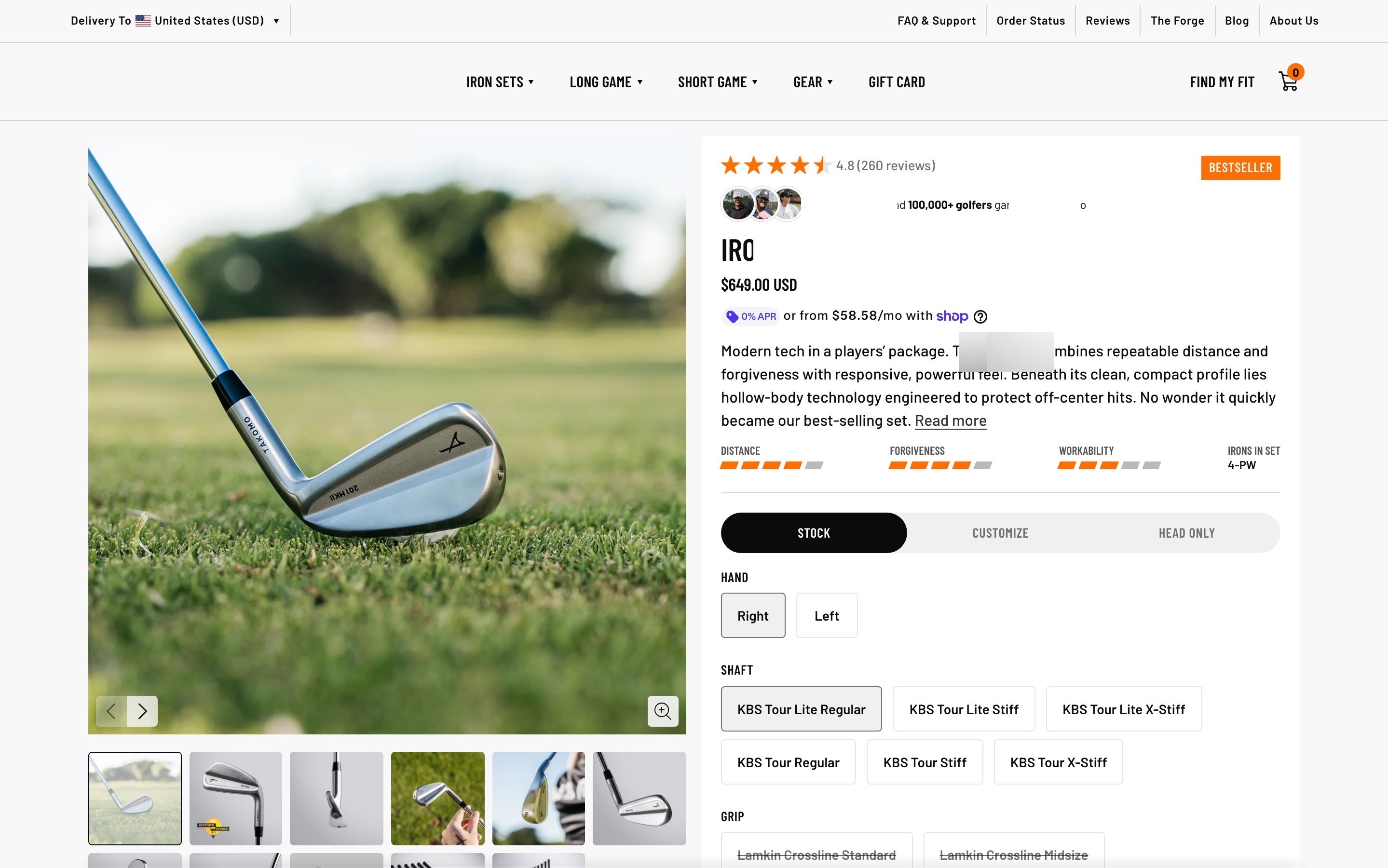
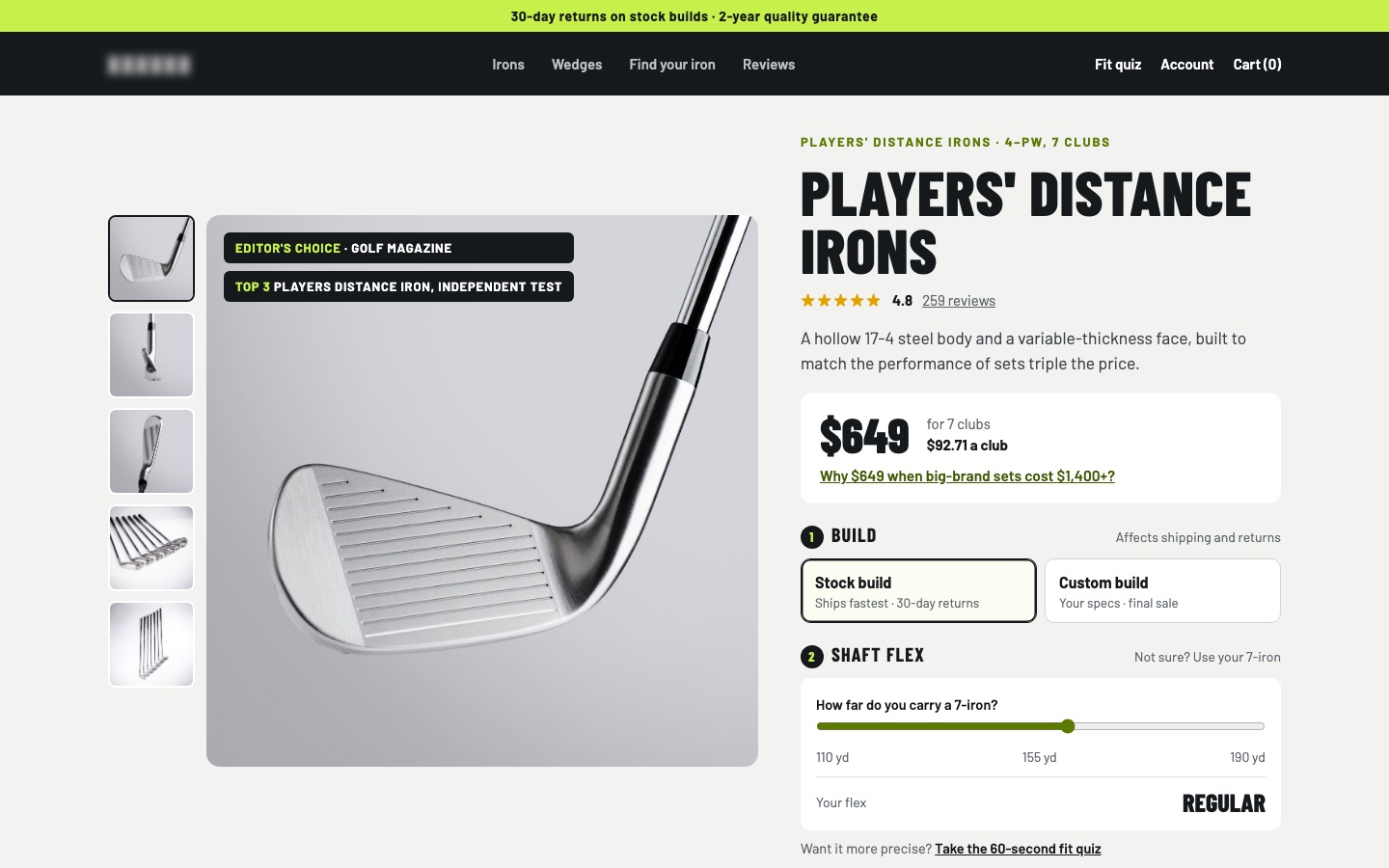
From my work · +8.1% conversion rate
A $649 iron set listed six shaft names with no help choosing. The redesign let golfers pick a shaft flex by how far they hit a 7-iron, right in the configurator.
See the golf irons case studyFAQ
Should I use dropdowns or buttons for product variants?
Buttons for sizes and short options, swatches for colors. Use a dropdown only when there are too many options to show.
How do I add color swatches in Shopify?
Current Shopify themes can show swatches from product option values: set a color or image for each value. Older themes need a swatch app or a theme update.
Should each color be a separate product?
Either works. Separate products can rank separately in search and show on collection pages, but must share the full content and reviews. Variants keep everything on one page.
Sources

Conversion designer. I design, redesign and build online stores, product pages and landing pages, A/B test them and show what each change earned. CXL certified in Conversion Optimization and Ecommerce Marketing, and a guest speaker on ecommerce UX at NYU School of Professional Studies.